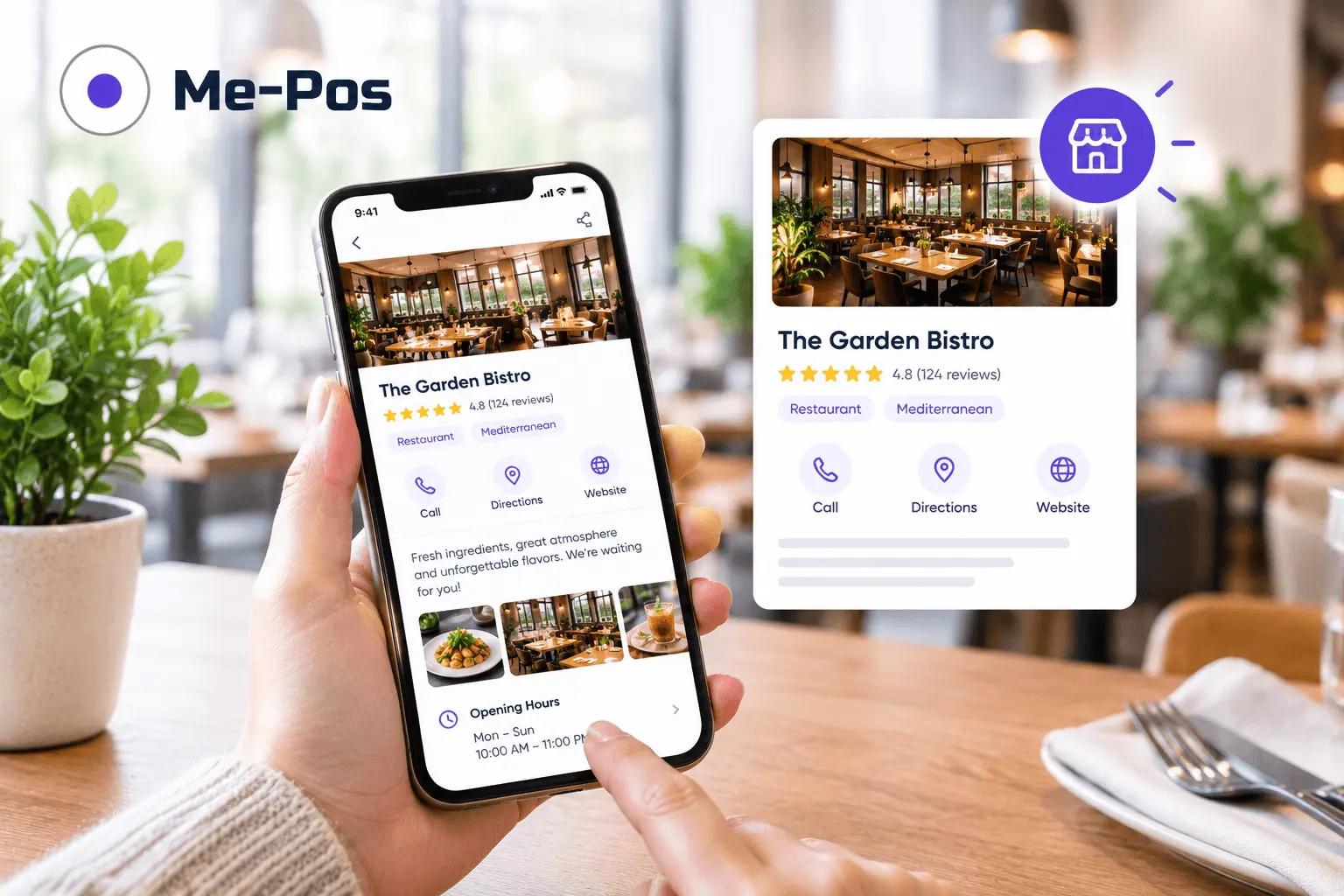
How to Create a QR Menu for Your Restaurant: Step-by-Step Guide
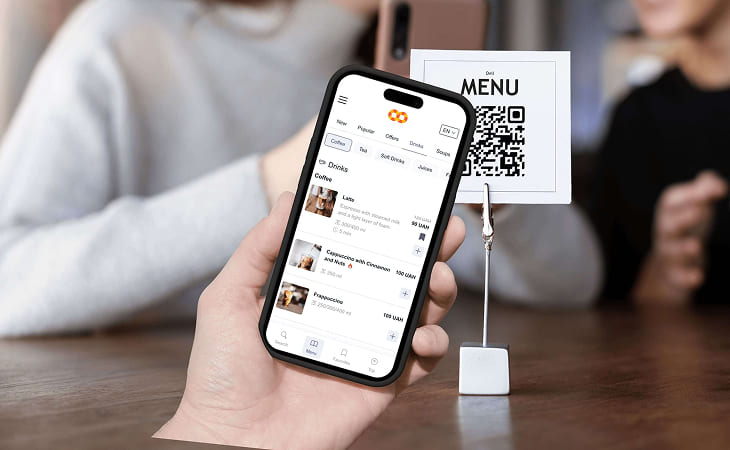
The way restaurants present their menus has changed dramatically in recent years. Customers now expect fast, convenient, and contactless access to food and drink options, while restaurant owners need a solution that's easy to update and manage.
A QR menu meets both expectations. Instead of printing new menus every time prices change or seasonal dishes are introduced, restaurants can manage everything digitally through a centralized admin panel.
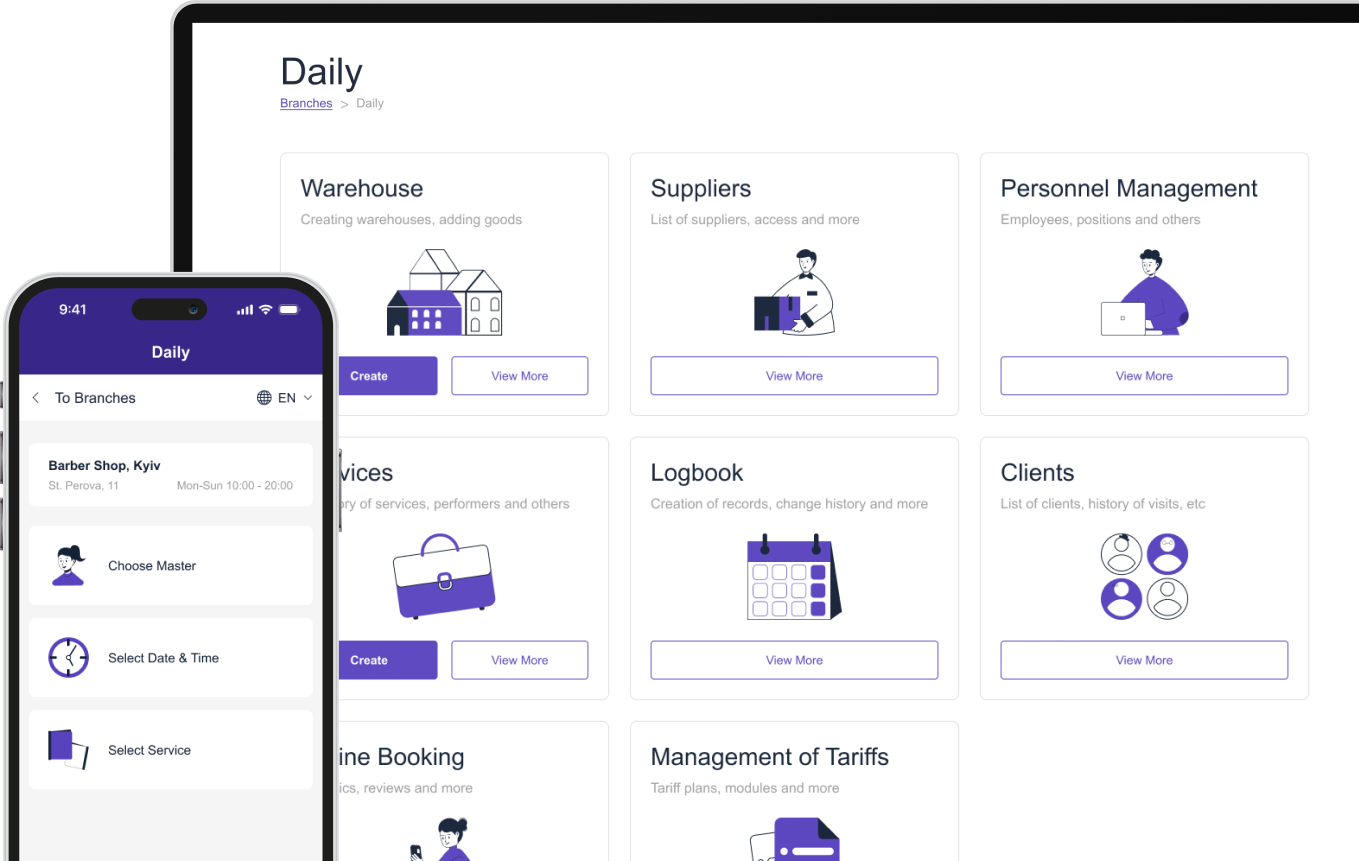
With platforms like ME-POS, creating a professional QR menu is straightforward. You can build multiple menus, organize categories, upload photos, manage translations, and publish updates instantly—all from one dashboard.
This step-by-step guide explains how to create a QR menu that is easy for customers to use and simple for your team to maintain.

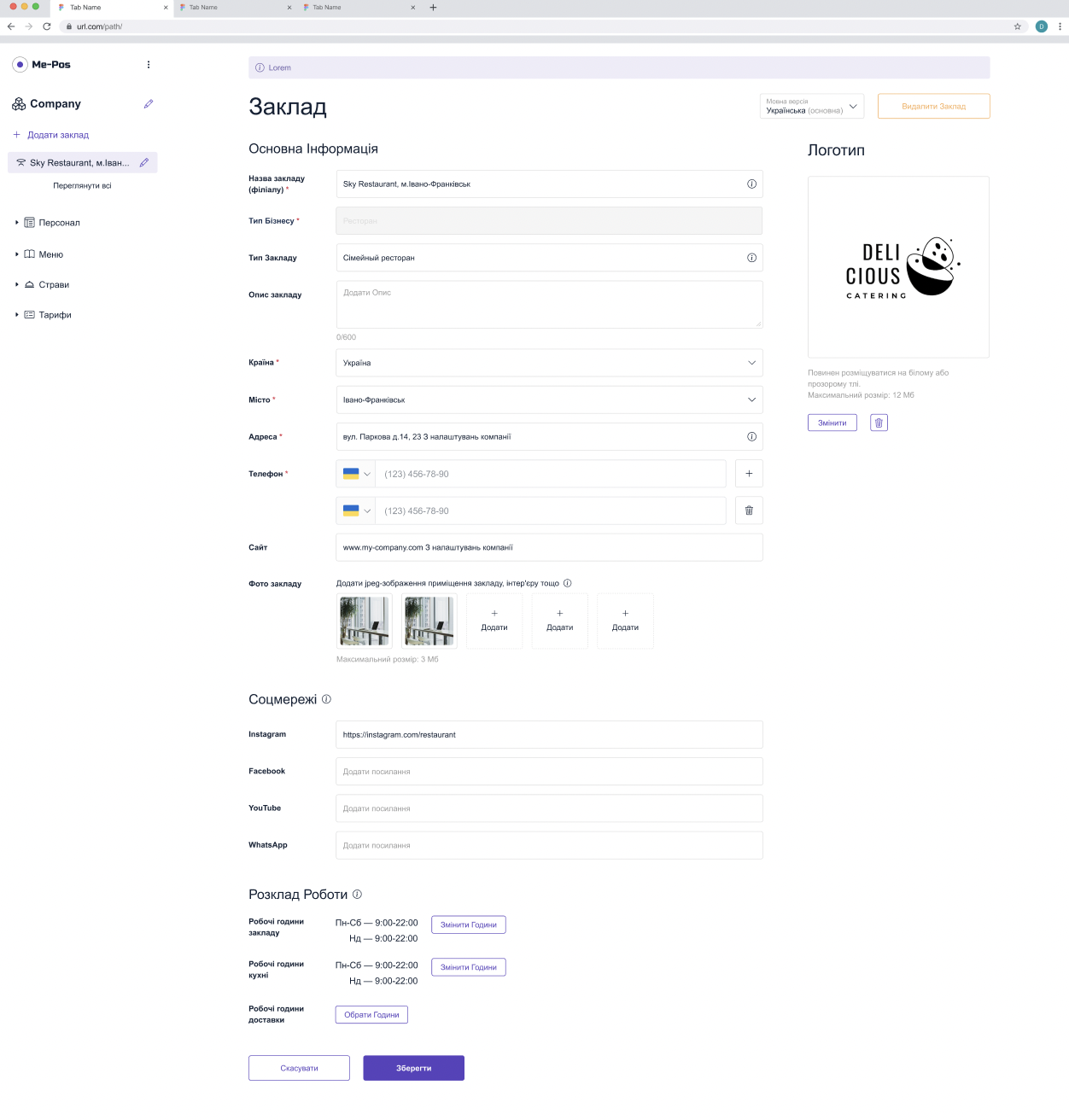
Set Up Your Restaurant Profile
Start by creating your restaurant profile in the admin panel. Add all the essential business information so customers can easily identify and contact your restaurant.
Include details such as:
- Restaurant name
- Logo
- Contact information
- Website
- Description
- Address
- Working hours
- Currency and timezone
If you manage several locations, you can also create multiple branches, each with its own contact details, schedule, and gallery.
Create Your Menu
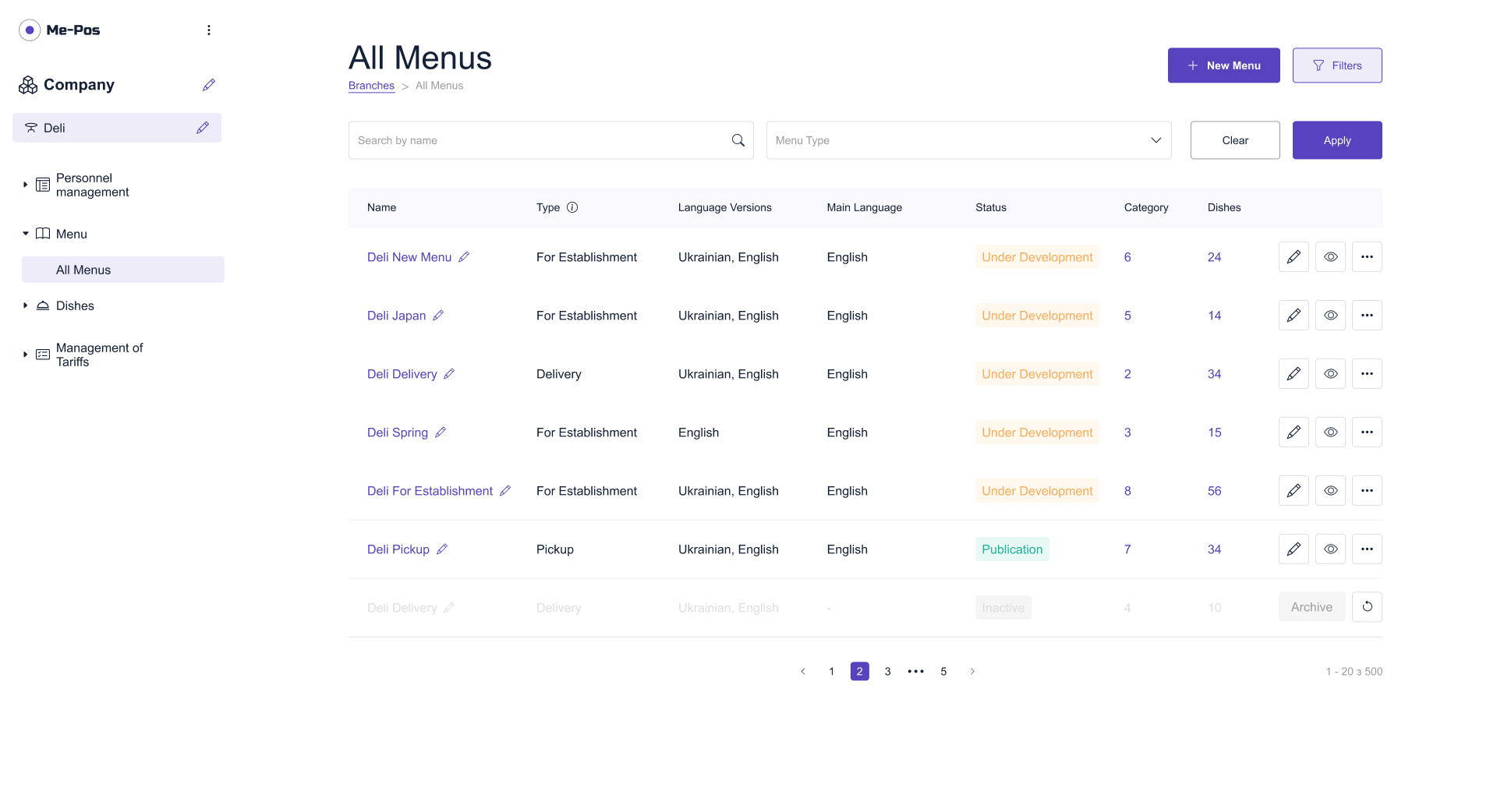
The next step is creating your digital menu. One of the biggest advantages of ME-POS is that you can create multiple menus for different business needs.
For example:
- Dine-in menu
- Delivery menu
- Pickup menu
- Seasonal menu
- Holiday menu
This allows you to customize the customer experience without managing separate systems.
Organize Categories
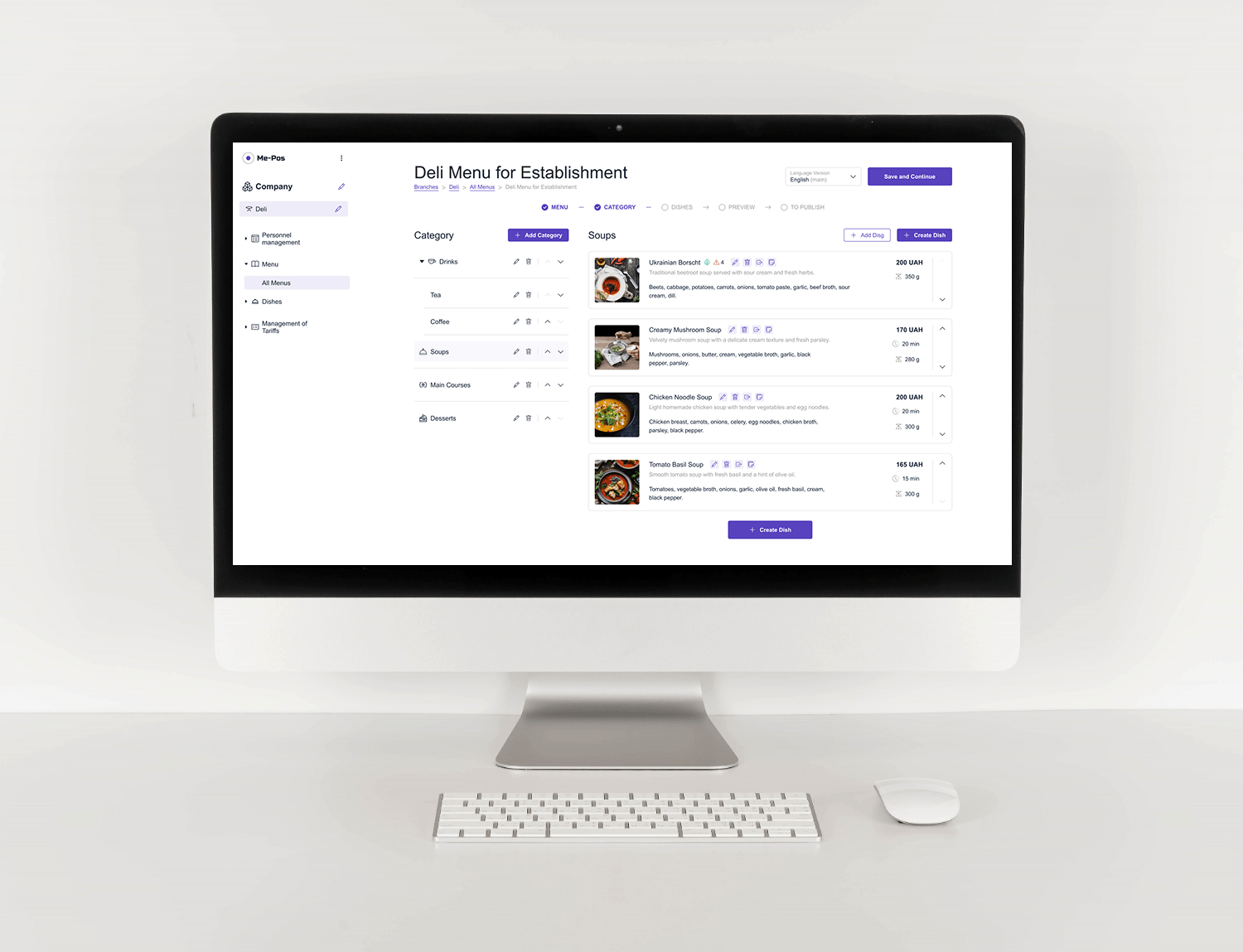
A well-structured menu helps customers find what they're looking for quickly.
Create categories such as:
- Appetizers
- Salads
- Main Courses
- Pizza
- Pasta
- Desserts
- Soft Drinks
- Cocktails
- Coffee
- Tea
You can also create subcategories for better organization.
Add Your Dishes
Now populate your menu with dishes.
Each dish can include:
- Name
- Description
- Short ingredients
- Photos
- Price
- Cooking time
- Portion size
- Weight or volume
- Dietary labels
- Allergens
- Availability
Detailed dish information helps customers make confident ordering decisions.
Example
Grilled Salmon
Description:
Fresh Atlantic salmon served with roasted vegetables and lemon butter sauce.
Additional information:
- Cooking time: 20 minutes
- Portion: 350 g
- Gluten-Free
- Contains fish and dairy
Providing this level of detail improves transparency and reduces customer questions.
Create Add-Ons and Options
Increase flexibility by allowing customers to customize their orders.
Examples include:
- Extra cheese
- Additional sauces
- Pizza toppings
- Different drink sizes
- Side dishes
You can make add-ons optional or required and assign individual prices to each option.
Example
Pizza Add-ons:
- Mushrooms
- Pepperoni
- Olives
- Extra mozzarella
These customizations improve the ordering experience and help increase the average order value.
Add Multiple Languages
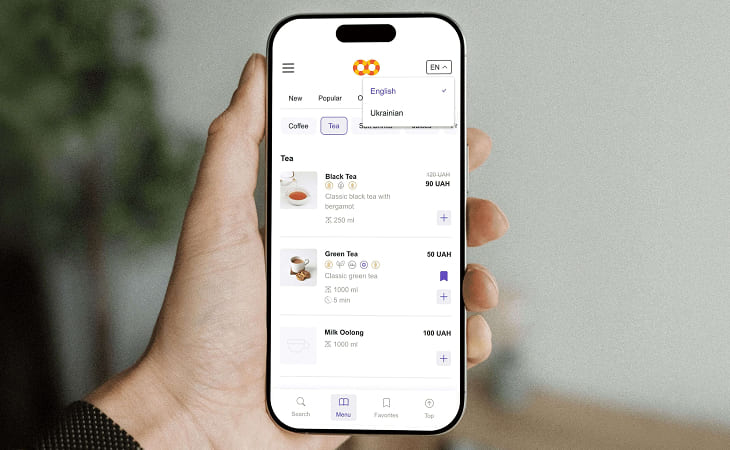
If your restaurant serves international guests, enable multiple menu languages.
The platform supports:
- Primary language
- Additional menu languages
- Automatic fallback to the primary language when translations are missing
Only translatable fields need editing, making localization faster and easier.
A tourist restaurant may offer menus in:
- English
- Spanish
- German
- French
- Italian
Guests simply select their preferred language and browse the menu comfortably.
Preview Your Menu Before Publishing
Before making your QR menu available to customers, use the preview feature.
Check:
- Category order
- Dish descriptions
- Images
- Prices
- Language translations
- Icons
- Add-ons
Previewing helps catch errors before customers see the menu.
Example
You might notice:
- A missing photo
- A typo in a dish description
- An incorrect price
- A category that needs reordering
Fixing these details before publishing creates a more professional experience.
Keep Your Menu Updated
Unlike printed menus, a QR menu is always easy to maintain.
You can instantly:
- Add seasonal dishes
- Change prices
- Remove unavailable items
- Launch promotions
- Archive old menus
- Clone existing menus for new campaigns
Customers always see the latest version without requiring new QR codes.
QR Menu Setup Checklist
Step
What to Do
Benefit
Example
Restaurant Profile
Logo, contacts, website
Professional presentation
Add restaurant branding
Restaurant Settings
Hours, language, currency
Improves customer experience
Display correct opening times
Menu Structure
Categories and subcategories
Easy navigation
Separate drinks and desserts
Dish Information
Photos, prices, allergens
Better ordering decisions
Add cooking time and ingredients
Add-Ons
Extra toppings and options
Increase average order value
Extra cheese or sauces
Languages
Menu translations
Serve international guests
English, Spanish, German
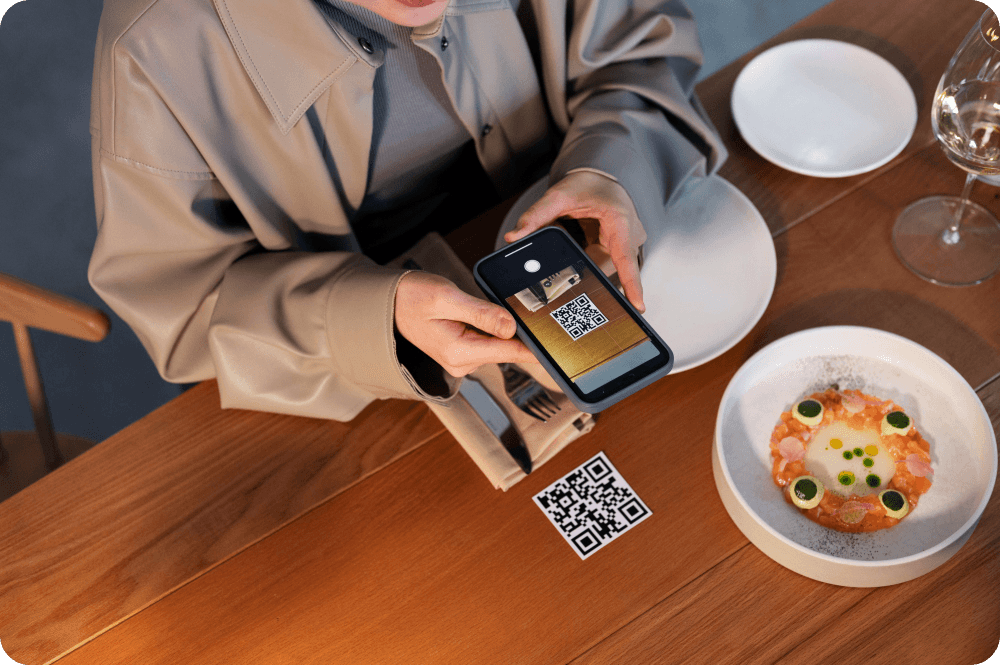
Preview & QR Code
Review before publishing
Prevent mistakes
Test menu before guests access it
Start Your Me-Pos
Experience for Free!
Make sure that Me-Pos Online Booking meets your needs and requirements before making a final decision.
Use for Free
Conclusion
Creating a QR menu is about much more than replacing paper menus. It's an opportunity to modernize your restaurant, streamline operations, and provide guests with a faster, more informative dining experience.
With ME-POS, restaurants can manage unlimited menus, organize categories, add detailed dish information, support multiple languages, create customizable add-ons, and publish updates instantly—all from one intuitive admin panel.
Whether you run a single café or a multi-location restaurant group, a professionally organized QR menu helps reduce manual work, improve menu accuracy, and deliver the digital experience customers expect in 2026.
Frequently Asked Questions about How to Create QR Menus
Yes. You can create separate menus for dine-in, delivery, pickup, seasonal promotions, and special events.
No. The QR codes remain the same, while the menu content can be updated whenever needed.
Yes. ME-POS supports multiple menu languages with automatic fallback to the primary language if a translation is unavailable.
Absolutely. You can create add-on groups for toppings, sauces, sides, and other options with individual pricing.
Yes. QR menus help businesses of any size reduce printing costs, simplify menu updates, and improve the overall dining experience.
Me-Pos Team
Last modified 07.08.2026
Was This Article Helpful?
Click on a star to rate it!
Thank you for your vote!

Average Rating: 3/5 Votes: 2
Be the first to rate this post!
Share with Friends:






































View more
Related Articles

524
5
Combining Online and Offline Bookings to Maximize Your Venue’s Capacity
For service-based venues — whether salons, spas, clinics, tattoo studios, or beauty centers — empty time slots mean lost revenue. Every unbooked chair...
Me-Pos Team
|
26.02.2026
|
8min
93
5
How to Create a Restaurant Menu Online Without Coding
Creating a restaurant menu online no longer requires coding skills or complicated website development. With a digital menu builder, restaurant owners ...
Me-Pos Team
|
05.10.2026
|
12min
117
5
How to Create a Multilingual Restaurant Menu Online
Restaurants increasingly serve customers who speak different languages. Tourists, international visitors, and multilingual local communities all benef...
Me-Pos Team
|
26.09.2026
|
14min

How to Set Up Online Booking for a Beauty Salon
Running a beauty salon means managing more than just treatments. You also need to coordinate staff schedules, answer appointment requests, avoid doubl...
Me-Pos Team
|
04.09.2026
|
11min
180
5
Why Digital Transformation Still Gives Small Businesses a Competitive Advantage
Running a small business has never been just about having a good product or providing excellent service. Today, customers also expect convenience, spe...
Me-Pos Team
|
31.08.2026
|
12min
249
5
Employee Access Levels: How to Protect Business Data While Keeping Your Team Productive
Running a restaurant or service business means giving employees access to the tools they need every day. Staff members may need to manage orders, upda...
Me-Pos Team
|
10.08.2026
|
12min
271
5
Using QR Code Menus for Hotel Restaurants and Room Service
The hospitality industry is becoming increasingly digital, and guest expectations continue to evolve. Modern travelers expect convenience, speed, pers...
Me-Pos Team
|
14.06.2026
|
17min
QR Menu Use Cases: From Dine-In to Delivery and Pickup Explained
QR menus have evolved far beyond being a simple digital replacement for printed menus. In 2026, they are becoming a central part of restaurant operati...
Me-Pos Team
|
09.06.2026
|
16min
1185
5
How to Make a Restaurant Menu Design?
Designing a restaurant menu is a crucial aspect of the restaurant industry. A well-crafted menu does more than list the dishes offered; it serves as a...
Me-Pos Team
|
30.09.2024
|
15min

866
5
Complete Guide on How to Open a Pet Store: Unique Steps and Tips
The pet industry is booming, making it an ideal time for starting a pet store business. With pet ownership steadily increasing, the demand for quality...
Me-Pos Team
|
28.07.2025
|
12min

1586
5
Liquor Store Opening: Step-by-Step Guide to Launching and Operating
Opening a liquor store can be an exciting and rewarding journey, but it’s not a business you want to jump into without preparation. From understanding...
Me-Pos Team
|
04.04.2025
|
9min

1280
5
Understanding Prices for Food Trucks: A Comprehensive Guide
So you want to start a food truck? Awesome choice! But before you hit the road, you have to figure out how much food trucks cost and what other expens...
Me-Pos Team
|
06.03.2025
|
8min

1490
5
Your Ultimate Guide on How to Open a Pharmacy Business
Starting a pharmacy business can be a rewarding and profitable venture if approached correctly. Pharmacies play a crucial role in communities by provi...
Me-Pos Team
|
20.12.2024
|
19min

1160
5
Starting a Spa Massage Business: A Complete Guide to Success
The wellness industry is booming, offering excellent opportunities for entrepreneurs looking to start a spa business. In today's fast-paced world, mor...
Me-Pos Team
|
19.12.2024
|
12min
1312
5
How to Open a Bar: A Step-by-Step Guide for Aspiring Entrepreneurs
Opening a new bar is an exciting venture, but it requires careful planning and attention to detail. Whether you dream of creating a laid-back pub or a...
Me-Pos Team
|
18.12.2024
|
11min

1065
4.5
How to Start an Ice Cream Truck Business?
Starting an ice cream truck business can be a lucrative and enjoyable venture for those who love being their own boss, engaging with the community, an...
Me-Pos Team
|
17.12.2024
|
16min

1144
4
How to Start a Gym as a Business: From Concept to Reality
Starting a gym business is a rewarding opportunity that combines a passion for fitness with entrepreneurial success. However, it involves far more tha...
Me-Pos Team
|
20.12.2024
|
14min
524
5
Combining Online and Offline Bookings to Maximize Your Venue’s Capacity
For service-based venues — whether salons, spas, clinics, tattoo studios, or beauty centers — empty time slots mean lost revenue. Every unbooked chair...
Me-Pos Team
|
26.02.2026
|
8min
93
5
How to Create a Restaurant Menu Online Without Coding
Creating a restaurant menu online no longer requires coding skills or complicated website development. With a digital menu builder, restaurant owners ...
Me-Pos Team
|
05.10.2026
|
12min
117
5
How to Create a Multilingual Restaurant Menu Online
Restaurants increasingly serve customers who speak different languages. Tourists, international visitors, and multilingual local communities all benef...
Me-Pos Team
|
26.09.2026
|
14min
How to Set Up Online Booking for a Beauty Salon
Running a beauty salon means managing more than just treatments. You also need to coordinate staff schedules, answer appointment requests, avoid doubl...
Me-Pos Team
|
04.09.2026
|
11min
180
5
Why Digital Transformation Still Gives Small Businesses a Competitive Advantage
Running a small business has never been just about having a good product or providing excellent service. Today, customers also expect convenience, spe...
Me-Pos Team
|
31.08.2026
|
12min
249
5
Employee Access Levels: How to Protect Business Data While Keeping Your Team Productive
Running a restaurant or service business means giving employees access to the tools they need every day. Staff members may need to manage orders, upda...
Me-Pos Team
|
10.08.2026
|
12min
271
5
Using QR Code Menus for Hotel Restaurants and Room Service
The hospitality industry is becoming increasingly digital, and guest expectations continue to evolve. Modern travelers expect convenience, speed, pers...
Me-Pos Team
|
14.06.2026
|
17min
QR Menu Use Cases: From Dine-In to Delivery and Pickup Explained
QR menus have evolved far beyond being a simple digital replacement for printed menus. In 2026, they are becoming a central part of restaurant operati...
Me-Pos Team
|
09.06.2026
|
16min
1185
5
How to Make a Restaurant Menu Design?
Designing a restaurant menu is a crucial aspect of the restaurant industry. A well-crafted menu does more than list the dishes offered; it serves as a...
Me-Pos Team
|
30.09.2024
|
15min
866
5
Complete Guide on How to Open a Pet Store: Unique Steps and Tips
The pet industry is booming, making it an ideal time for starting a pet store business. With pet ownership steadily increasing, the demand for quality...
Me-Pos Team
|
28.07.2025
|
12min
1586
5
Liquor Store Opening: Step-by-Step Guide to Launching and Operating
Opening a liquor store can be an exciting and rewarding journey, but it’s not a business you want to jump into without preparation. From understanding...
Me-Pos Team
|
04.04.2025
|
9min
1280
5
Understanding Prices for Food Trucks: A Comprehensive Guide
So you want to start a food truck? Awesome choice! But before you hit the road, you have to figure out how much food trucks cost and what other expens...
Me-Pos Team
|
06.03.2025
|
8min
1490
5
Your Ultimate Guide on How to Open a Pharmacy Business
Starting a pharmacy business can be a rewarding and profitable venture if approached correctly. Pharmacies play a crucial role in communities by provi...
Me-Pos Team
|
20.12.2024
|
19min
1160
5
Starting a Spa Massage Business: A Complete Guide to Success
The wellness industry is booming, offering excellent opportunities for entrepreneurs looking to start a spa business. In today's fast-paced world, mor...
Me-Pos Team
|
19.12.2024
|
12min
1312
5
How to Open a Bar: A Step-by-Step Guide for Aspiring Entrepreneurs
Opening a new bar is an exciting venture, but it requires careful planning and attention to detail. Whether you dream of creating a laid-back pub or a...
Me-Pos Team
|
18.12.2024
|
11min
1065
4.5
How to Start an Ice Cream Truck Business?
Starting an ice cream truck business can be a lucrative and enjoyable venture for those who love being their own boss, engaging with the community, an...
Me-Pos Team
|
17.12.2024
|
16min
1144
4
How to Start a Gym as a Business: From Concept to Reality
Starting a gym business is a rewarding opportunity that combines a passion for fitness with entrepreneurial success. However, it involves far more tha...
Me-Pos Team
|
20.12.2024
|
14min
View more
